Live Translator: AI translate
- 4.6
- Rating
- 1.00M
- Installs
- Free
- Price
 Analysis by App-foxy
I tried Live Translator: AI translate as the kind of tool you open when a language barrier appears without warning: a message arrives in an unfamiliar language, a sign needs decoding, or a conversation has to move forward quickly. It is a free tools app from TERASsoft, aimed at combining voice, written text, and photos in one translation workflow rather than making you jump between separate utilities.
That combination is its main appeal. I could begin with spoken language, switch to typed text when the environment became noisy, and use a photo when the words were printed somewhere else. The app also includes a specialized headphone mode, which gives it a more focused role during conversations where holding the phone up constantly would be awkward. It is not a replacement for a professional interpreter, but it is a practical companion for everyday travel, casual communication, and quick comprehension.
From an unfamiliar phrase to a usable answer
I find this section most useful when it treats translation as a sequence of small decisions, not a single button press: first identify whether the words are spoken, written, or printed, then choose the input that gives the clearest starting point. That approach also makes it easier to decide when a quick result is enough and when I should slow down and check the original before acting.
You May Also Like

 Blood Strike: 2.5 Anniversary
Blood Strike’s Loadouts Turn Every Drop Into a Tactical Gamble
A close look at Blood Strike’s custom loadouts: how fast access to signature weapons reshapes its battle royale rhythm, rewards preparation, and narrows the gap between fights.

 Pandora - Music & Podcasts
Pandora’s Music Is Easy to Start, but Harder to Recover
Pandora’s strength is its low-effort path from a seed to a station. Its weak spot is how much confidence it asks you to place in connection, setup, and quiet recovery.

 8 Ball Pool
 Is Built on Rivalries, Rematches, and Routine
A close look at the rivalries, rematches, shared routines, and unanswered safety questions that turn a quick pool match into a persistent mobile community.

 Samsung Music
’s Quiet Strength Is Playing What You Already Own
Its reach comes less from spectacle than from dependable access to a personal library. That simplicity is both the app’s strongest retention engine and its ceiling.

 AccuWeather: Weather Radar
AccuWeather Review: A Quick, Clear Forecast for Everyday Decisions
For everyday plans, the best forecast is the one you can understand quickly. AccuWeather makes rain timing, radar, and local conditions easy to act on, with a few trade-offs.

 Hill Climb Racing
Why Hill Climb Racing Still Turns Crashes Into One More Run
A tiny car, a bumpy hill and one more upgrade: Hill Climb Racing keeps resurfacing because its simple chaos makes every near-miss feel personal.
More From Our News Desk



Starting with the situation, not the translation method
The best way to use this app is to decide what kind of input you actually have before pressing buttons. If someone is speaking directly to me, voice translation is the natural starting point. If I already know the sentence but need it in another language, typing is cleaner. If the information is on a menu, notice, label, or screen, the photo route saves time because I do not have to copy every word manually.
That sounds obvious, but it changes how smoothly the app feels. A common mistake with translation tools is forcing everything through voice input. In a quiet room, that can be convenient. In a station, street, café, or busy office, it can become unreliable simply because the phone has to distinguish the intended speech from everything around it. Live Translator is more useful when I treat its three input paths as alternatives rather than expecting one mode to solve every problem.
The app is available at no upfront cost, which makes it easy to test before depending on it. Its content rating is Everyone, so it is positioned as a general-purpose utility rather than a specialist tool for a narrow audience. It runs on Android 8.0 or later, and the current version is 2.1.1. Those details matter if I am preparing an older spare phone for travel or installing it on a device that has not been updated recently.
A realistic everyday workflow
Imagine I am checking into a small hotel abroad. The receptionist explains a local rule quickly, and I catch only part of it. I can open the voice function, let the app process the spoken request, and read the translated result instead of asking the person to repeat everything several times. If my reply is easier to formulate in writing, I can type it and use the translated version as the handoff back into the conversation.
Now imagine the receptionist points to a printed notice. This is where the photo option becomes more useful than voice. I can capture the text, inspect the translation, and compare it with the original image when a phrase feels ambiguous. That last step is important: a translation result should help me understand the situation, not encourage me to ignore the source material completely. Names, room numbers, addresses, and dates deserve a visual check before I act on them.
For a short exchange, this workflow is fast enough to feel natural. The value is not that every sentence becomes perfect. The value is that I can move from confusion to a workable response without changing apps or manually retyping a sign. In my experience, that reduction in small interruptions is more meaningful than a flashy interface.
Voice mode and the headphone handoff
Voice translation is most useful when both people understand that the phone is acting as a bridge. I would place it where the microphone can hear clearly, speak in short sentences, and pause between thoughts. Long, rushed explanations are harder to translate well because they contain more context, names, and implied meaning in one pass.
The specialized headphone mode is especially interesting for situations where the phone screen should not dominate the interaction. It can make a conversation feel less like two people passing a device back and forth. That is useful while walking, navigating a public place, or trying to keep a discussion moving. The trade-off is that headphone-based use demands more attention to who is listening and when the translation has finished. If one person starts speaking over the translated audio, the handoff can become confusing.
I would not treat headphone mode as an automatic solution for every live conversation. In a quiet one-to-one exchange, showing the translated text may be clearer because both people can see what was understood. In a noisy setting, headphones may help one listener concentrate, but they can also reduce awareness of the surrounding environment. My practical approach is to use the mode when privacy or convenience matters, then switch back to visible text when accuracy needs to be checked together.
Text input when precision matters more than speed
Typing is the least dramatic option, but often the most dependable for a carefully formed question. I prefer it for addresses, instructions, appointment details, and messages that I want to review before sending. It also helps when pronunciation is uncertain or when the source language uses names that speech recognition may interpret incorrectly.
A useful habit is to keep the original sentence short. Instead of entering a complicated paragraph with several requests, I would separate it into individual questions. That makes the translated result easier to inspect and gives the other person a clearer chance to answer. It also creates a better correction loop: if the first result sounds wrong, I can adjust one phrase rather than rebuild the entire message.
This is one area where a dedicated dictionary or established translation website may still be preferable for language study. Those alternatives often suit people who want definitions, examples, or a deeper explanation of grammar. Live Translator is more focused on getting from an input sentence to a practical exchange, so I see it as a communication tool first and a learning tool second.
Photo translation and the importance of the original image
Photo translation is the mode I would use most selectively. It is valuable when the source is physically inconvenient to type, such as a menu, poster, package, or public notice. The quality of the result depends heavily on the image: glare, curved paper, tiny lettering, decorative fonts, and partial cropping can all create problems before translation even begins.
I get better results by taking a steady, close image with the relevant words fully visible. If the text is arranged in columns or mixed with illustrations, I would capture a tighter crop rather than photographing the entire wall or page. I also keep the original image available for comparison. A translated phrase that seems strange may reflect the layout or an incorrectly recognized word, not necessarily a failure of the language engine.
There is a less obvious use for this mode: it can reduce social friction. Asking someone to translate a menu or sign may be uncomfortable when neither person shares a strong common language. Checking the image privately first lets me form a more specific question afterward. That makes the later voice or text exchange shorter and more useful.
How the handoffs work in real use
The strongest workflow is not choosing one mode and staying there. It is moving between modes according to what the other person needs. I might photograph a written instruction, use the result to understand the topic, type a clarification, and then use voice for the final reply. Each handoff removes a different obstacle: the photo handles the source material, text handles careful wording, and voice keeps the conversation moving.
Those handoffs also create the main friction. Every switch is a chance to lose context, select the wrong language, or forget which version of a sentence was being discussed. I would therefore keep exchanges small and confirm the key point after each important translation. For a simple request, that may feel unnecessary. For directions, medication instructions, payment details, or travel changes, it is sensible.
Another practical tip is to prepare the app before the conversation becomes urgent. I would open it, check the selected languages, and decide whether the phone or headphone workflow is more appropriate. Doing that in advance is less stressful than configuring everything while another person is waiting. The app is designed for quick access, but quick access still depends on a little preparation from the user.
What the result is good enough for
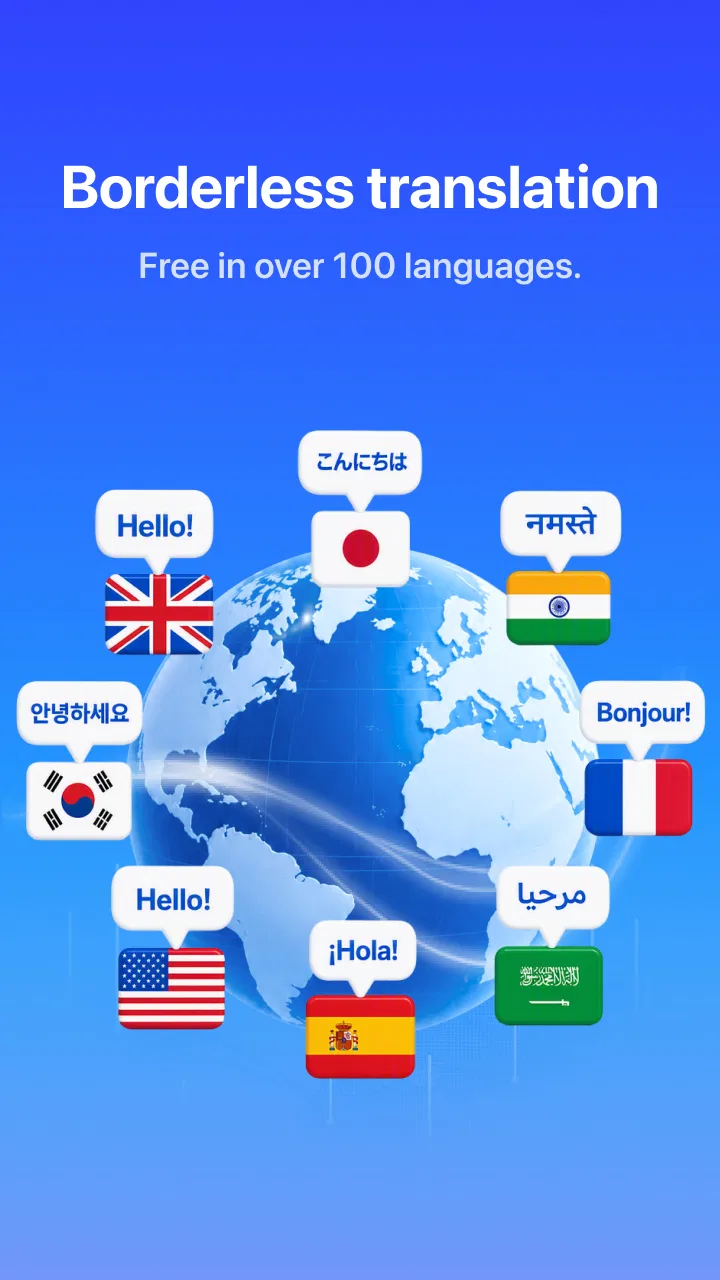
Live Translator works best when the goal is functional understanding. I can use it to ask where something is, understand a short notice, explain a basic need, or keep a casual exchange alive. It is also helpful for travelers who do not want to install separate tools for speech, typed translation, and camera-based text recognition.
The app has earned a 4.6 average from around 15 thousand ratings, and it has passed the million-install mark. Those figures suggest that it has found a broad audience, but they do not change the way I would judge an individual translation. A high average is reassuring for general usability; it is not a guarantee that a specialized phrase, regional expression, or sensitive instruction will be interpreted perfectly.
I would be comfortable using it for low-risk decisions and everyday communication. I would slow down for anything involving legal commitments, medical treatment, financial transfers, safety warnings, or technical procedures. In those cases, the app can help me identify the subject and prepare questions, but a qualified human or trusted professional translation is the better final authority.
Where it compares well with usual alternatives
Compared with relying on a phone’s built-in text translation alone, this app feels more flexible because voice and photo input belong to the same experience. Compared with a basic dictionary, it is better suited to complete exchanges rather than looking up one word at a time. Compared with a dedicated camera translator, its advantage is that I can continue the conversation without leaving the same tool.
Dedicated translation services may still be a better choice for people who need extensive language-learning features, specialist terminology, or a long record of carefully edited translations. A human interpreter is clearly preferable when tone, cultural nuance, confidentiality, or legal precision matters. Live Translator occupies the middle ground: more capable than a phrasebook, less authoritative than professional language support.
Its free entry point makes that middle ground easy to explore, although the app includes optional in-app purchases ranging from $5.99 to $99.99 per item. I would check what a paid option unlocks before committing, especially if I only need occasional help. For a one-off trip or rare conversation, the free experience may be sufficient; frequent users should decide whether the added cost matches their actual routine rather than assuming every advanced function is necessary.
Where the flow breaks down
The first weak point is noisy or overlapping speech. A translation app cannot compensate fully when the source audio is unclear, and a rushed speaker can create an incorrect result that still looks confident on screen. I would ask for shorter phrases, move closer to the speaker, or switch to typing instead of repeatedly trusting a poor voice capture.
The second weak point is ambiguity. A short phrase can have several meanings depending on context, politeness, or local usage. The app may give me a useful starting point without explaining every possible interpretation. When the wording matters, I would translate the idea in smaller pieces and ask the other person to confirm the intended meaning.
Photos bring their own problems. Poor lighting, reflections, unusual layouts, and handwritten text can make the input unreliable. A second photo from a different angle may help, but there is a point where manually typing the important line is quicker. This is why I see camera translation as a convenience for accessible printed text, not a promise that every image will become readable.
There is also a human limitation: people may speak differently once a phone enters the conversation. Some become overly formal, others speak too quickly because they assume the app will handle everything. I get better results when I explain that short, clear sentences work best and when I leave a pause for the translation to complete. The app can support the exchange, but it cannot manage the social rhythm on its own.
Who should install it, and who should skip it
I would recommend it to travelers, international students, occasional visitors, customer-facing workers, and anyone who regularly receives messages in languages they do not understand. It is particularly suitable for people who want one practical tool covering spoken input, typed requests, and text from photos. The headphone mode adds another reason to consider it if hands-free listening is part of the intended routine.
I would skip it if I need a full language course, detailed grammar instruction, or guaranteed professional accuracy. I would also avoid making it my only safety tool in situations where a mistranslation could cause serious harm. In those cases, a specialist service, human assistance, or an official bilingual source should take priority.
For everyone else, the sensible approach is to test it in low-pressure situations first. Try a short spoken request, then a typed sentence, then a clear photo. Notice which mode feels most reliable on your phone and in your surroundings. That small trial tells me more than a feature list because translation success depends on the handoff between the app, the source material, and the people using it.
My final take after following the complete workflow
Live Translator: AI translate is a useful, approachable tool for turning a confusing moment into a manageable conversation. I like that the workflow can begin with a voice, a sentence, or an image and then continue through another input method when the first one is not enough. That flexibility feels more valuable than having a single impressive translation mode.
Its limitations are real: unclear speech, difficult images, ambiguous wording, and high-stakes situations all require caution. Still, for everyday travel and casual communication, I find the app easy to justify, especially because it is free to start and supports Android 8.0 and later. TERASsoft has built something I would keep available for those moments when a dictionary is too slow and a professional interpreter would be excessive.
My recommendation is simple: use it as a bridge, not as the final authority. Prepare the language settings, choose the input method that matches the situation, keep important sentences short, and verify anything consequential against the original wording. Used that way, it can quietly remove a lot of friction from real conversations without pretending that translation is always one tap away from perfection.
FAQs for Live Translator: AI translate
01What is Live Translator: AI Translate, and how does it work?
Live Translator: AI Translate is designed to help users understand and communicate in different languages through instant translation. Depending on the feature being used, you can typically enter text, speak into the microphone, or use the camera to translate written content. The app then processes the request and displays the translated result, making it useful for travel, conversations, study, and everyday communication.
02Which languages does Live Translator: AI Translate support?
The app may support a broad selection of commonly spoken languages, but the exact list can vary according to the translation mode and the current version of the application. Text translation may offer more languages than voice or camera translation. Before relying on it for travel or work, check the in-app language selector and confirm that both your source and target languages are available.
03Does Live Translator: AI Translate work without an internet connection?
Many AI translation applications require an internet connection because translation requests are processed through online services. Some versions may provide limited offline language packs or basic functionality, but offline support should not be assumed for every feature. If you plan to use the app on a flight, in a remote area, or while avoiding roaming charges, test the required languages and tools before leaving.
04Is Live Translator: AI Translate free to download and use?
The application may be available as a free download, while certain advanced tools can be restricted by advertisements, usage limits, subscriptions, or in-app purchases. These limits can apply to voice conversations, camera translation, premium language support, or unlimited requests. Review the pricing details shown on the Google Play Store or App Store and inside the app before starting a trial or subscription.
05Can Live Translator: AI Translate replace a professional human translator?
Live Translator: AI Translate can be convenient for casual conversations, travel directions, menus, messages, and general understanding, but it should not be treated as a perfect replacement for a professional translator. AI translation can misunderstand accents, slang, context, technical terminology, or culturally sensitive expressions. For legal, medical, business, or official documents, always verify the result with a qualified human translator.
Pros
- Translates speech
- text
- and images in one convenient app.
- Useful for travel
- conversations
- and reading foreign-language signs.
- AI-powered translations can handle natural phrases and everyday wording.
- Supports quick two-way conversations between different languages.
- Simple interface makes core translation tools easy to find.
Cons
- Translation quality may vary with accents
- slang
- and complex sentences.
- Some features may require an internet connection to work properly.
- Live voice translation can be affected by background noise.
- Advanced tools or unlimited usage may require a paid subscription.
- Sensitive conversations may raise privacy concerns when processed online.

Live Translator: AI translate
Gallery